Start guide
Go from a new account to your first ticket: sign up, name your workspace, connect GitHub, and assign it.
Overview
AoTwin is a place to keep your team’s tickets, and a teammate you can assign them to. This guide takes you from a new account to a first ticket that is filed and assigned.
You need an email address, or a Google account. You need a GitHub account only if you want AoTwin to change code.
Sign up
- Open
app.aotwin.io/start. If you picked a plan on the pricing page, the link already carries your choice. - Choose Continue with Google, or choose Continue with email, type your address and press the arrow.
- For email, open the message we send. The link works once and lasts 15 minutes. If it fails, go back to the page and ask for a new one.
- On the Welcome to AoTwin page, type the name your teammates should see and press Continue. Your name goes on the work you ask for. If you signed in with Google, AoTwin uses your Google name and skips this question.
- On Name your workspace, check the suggestion and press Continue. For a work address AoTwin suggests your company’s name. For a personal address it suggests “Your name’s workspace”. The name can be up to 80 characters.
If someone invited you to their workspace, open their invitation instead of signing up. See People.
Look around Home
You land on All work, the home of the workspace. The sidebar has Inbox, All work, My requests, Ask AoTwin, and three shortcuts under Views. Read Concepts for the words used across the app.
A new workspace starts on the Free plan. Free keeps your team’s tickets in one place and lets you assign them to teammates. AoTwin itself, and Ask AoTwin, come with a paid plan. If you sign up with a throwaway email address, the workspace starts with no plan and can’t file tickets until an admin picks one in Settings > Plan. See pricing for what each plan includes.
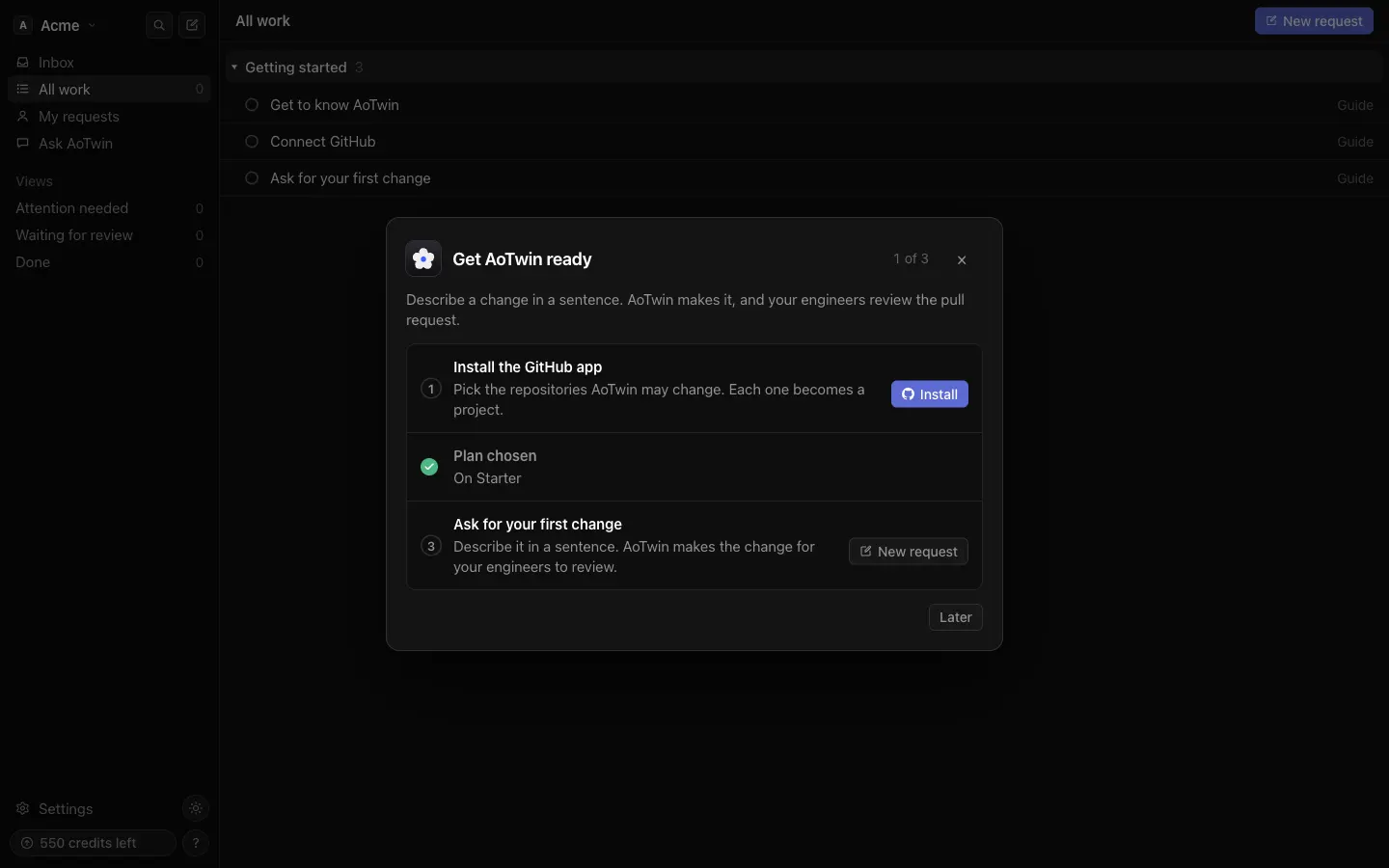
As an admin you also see a Get AoTwin ready window with the steps left. Press Later to close it. It opens again from the Finish setting up AoTwin card in the sidebar.
Connect GitHub
Do this if you want AoTwin to change code. Skip it to use AoTwin as a ticket tool for now. Only admins can do it, and the step is not shown on the Free plan.
- In Get AoTwin ready, press Install on Install the GitHub app. You can also go to Settings > Connections, find GitHub and press Install.
- On GitHub, choose the account and the repositories AoTwin may reach.
- Back in AoTwin, each repository becomes a project, named after the repository. AoTwin adds up to ten at a time, and fewer if your plan’s project limit is lower. A note on Home says how many were left out and links to Settings > Code, where you can choose which ones to keep.
AoTwin can open changes in these repositories but can’t merge them. Every change waits for one of your engineers. See GitHub for the details.
Choose a plan
If AoTwin should do the work, pick a paid plan in Settings > Plan. If you chose a plan on the pricing page, the setup window shows a Start button for it that opens checkout. Credits come with the plan; see Credits.
File your first ticket
- Press New request in the top right of Home, or press
C. - Write a title and a description. Say what is wrong or wanted, and where. A copy fix, a missing filter or a layout that has been wrong for months are all good first tickets.
- Pick a Project if you have more than one.
- Choose who it is assigned to in the Assigned to menu: Nobody, AoTwin, or a teammate.
- Press Send request, or
⌘↵.
You land on the ticket’s page, with its key, like WEB-12. Read Tickets for every field.
Assign it
Assigned to decides who works on the ticket.
- A teammate: the ticket starts in Todo and waits for them.
- AoTwin: the ticket is sent and AoTwin starts on it. This spends credits. With a paid plan and code connected, AoTwin is already chosen when you open the form.
- Nobody: the ticket waits in Backlog.
If GitHub isn’t connected yet, an AoTwin ticket is saved and waits. The ticket says “Saved · AoTwin starts once GitHub is connected” and begins as soon as an admin connects it.
You can change the assignee at any time from the ticket page. See Statuses for what happens next.
Invite your team
Press Invite in the setup list, or go to Settings > People. Members can see all the work, file tickets and comment. See People.
Next steps
- Tickets: the fields, the similar-ticket check, editing and closing.
- Statuses: what each status means and what moves a ticket.
- Board and list: see all the work at once.
- Inbox: where AoTwin’s questions and results arrive.
- Ask AoTwin: ask questions about your tickets.
FAQ
Do I need to connect GitHub?
Not to keep tickets. You need it for AoTwin to change code, because AoTwin works only in repositories you choose. Until then, tickets assigned to AoTwin are saved and wait.
The sign-in email didn't arrive. What now?
Check your spam folder, then go back to the Check your email page and choose Use a different email if you mistyped. Each link works once and lasts 15 minutes. Asking too many times in an hour is limited, so wait a little before trying again.
Can I set a password?
No. AoTwin signs you in with Google or with an email link each time.