Comments
Comment on a ticket, attach screenshots, react, and answer a question from AoTwin.
Overview
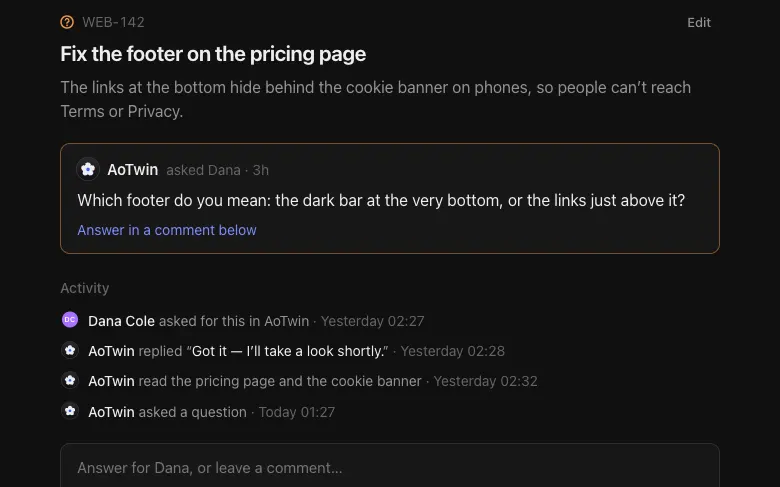
Comments are how people and AoTwin talk on a ticket. They sit in the Activity section of the ticket page, mixed in time order with events like “set the status to In progress”. Everyone in the workspace can read and write them.
Basics
Leave a comment
- Open the ticket.
- Type in the box at the bottom, which says Leave a comment…. A comment can be up to 5,000 characters.
- Press the send button, or press
⌘↵.
Closed tickets don’t take new comments. Reopen the ticket first. See Tickets.
A comment never starts AoTwin. The only comment that wakes AoTwin is the answer to a question it asked, described below.
Format a comment
Comments take plain text with a little structure.
- A blank line starts a new paragraph.
- Put
**around words to make them bold. - Start lines with
-to make a list. - Write a link as
[text](https://example.com). - Write a ticket key, like
WEB-12, and it links to that ticket.
Attach a screenshot
Press the paperclip beside the send button and choose one or more images. PNG, JPEG, WebP and GIF files are accepted. The images show under your comment. Press one to see it full size.
React to a comment
Press the smiley button on a comment, then choose one of eight reactions: 👍 ❤️ 🎉 😄 🙏 👀 🚀 ✅. Press a reaction already under a comment to add yours to the count. Press it again to take yours back. Hover a reaction to see who left it.
More actions
The … menu on a comment has three choices.
- Copy link to comment copies a link that opens the ticket at that comment.
- Copy content as Markdown copies the text.
- New request from comment… opens New request with the comment’s text in the description and a note saying where it came from. Use it when a comment holds a separate piece of work.
The activity timeline
Events sit between comments: who filed the ticket, who assigned it, each status change, and AoTwin’s own steps. When five or more events come in a row, the timeline shows the first and the last and folds the rest into Show N events. Press it to open them.
Answer a question from AoTwin
When AoTwin can’t go on without a decision, it asks on the ticket and the status becomes Waiting on you, or Waiting on a name if the question is for someone else. The question shows at the top of the ticket, in AoTwin’s own words. It also arrives in that person’s Inbox and by email.
- Open the ticket from the Inbox, the email or the board.
- Press Answer in a comment below, or click the comment box. Its prompt reads Answer AoTwin, or leave a comment….
- Write your answer and send it.
AoTwin picks the work up again as soon as the answer is in. The status goes back to Working, and the Inbox records “AoTwin picked it up”.
Anyone in the workspace can answer, not only the person the question was for. The first comment sent while AoTwin is waiting counts as the answer, so say clearly what you decided. Put any background in the same comment.
Comments and Linear
If the ticket is in Linear, comments you write in AoTwin are posted to the Linear issue too, and reactions are shared. See Tickets.
FAQ
I commented on a ticket and AoTwin did nothing.
That is expected. Comments don’t start AoTwin. A ticket starts when it is assigned to AoTwin.
Can I mention a teammate?
AoTwin doesn’t have @mentions. To bring someone in, send them the ticket’s link, or use Copy link to comment.
Why can't I comment?
The ticket is closed. Press Reopen, then comment.