Plans and billing
What each plan adds, how to change plans, pay monthly or yearly, and what happens when you cancel.
Overview
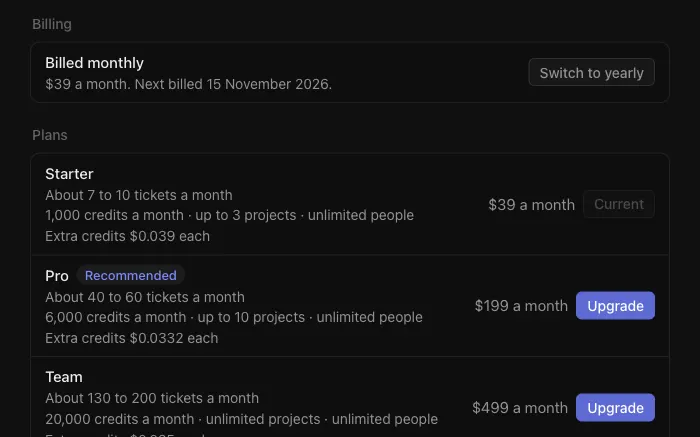
A plan decides whether AoTwin can work on your tickets, how many credits the workspace gets each month, and how many projects and people it can have. Prices, credits and limits for each plan are on the pricing page. This page explains how to choose, change and cancel a plan.
What each plan adds
| Plan | What it is for |
|---|---|
| Free | Your team’s tickets, the board, the inbox and the MCP server. It has limits on people and projects, and it does not include AoTwin the agent. |
| Starter | Adds AoTwin working on your tickets, Ask AoTwin across the whole workspace, unlimited people, and extra credits at the plan’s own rate once the monthly credits run out. |
| Pro | Everything in Starter, with more credits and projects. |
| Team | Everything in Pro, with more credits, unlimited projects and priority support. |
| Enterprise | For larger teams or special requirements. Contact us. |
Credits are explained in Credits.
Configure
Only admins can see or change the plan. The plan page is Settings > Plan.
Choose a plan
- Open Settings > Plan and go to Plans.
- Pick Yearly or Monthly above the list.
- Choose Choose next to the plan you want. AoTwin opens Stripe’s checkout.
- Pay. When you return, the page says Payment received and shows the plan once it is ready, usually within a moment.
If your bank wants to confirm the payment, the page shows Confirm the payment. The plan starts once it is confirmed.
Prices are in US dollars and do not include tax.
Change plan
On Settings > Plan, choose Upgrade or Switch next to another plan. AoTwin asks you to confirm.
- Upgrading starts now. Stripe charges the difference for the rest of the current month, or year, and the credits top up to the new plan’s amount.
- Switching to a smaller plan starts when the current month or year ends. The current plan stays until then.
A change that has not started yet shows a banner with Keep and the current plan’s name. Choose it to undo the change.
Monthly and yearly billing
Both are open on every paid plan. Yearly billing costs less per month and is paid once a year. Your credits still arrive every month.
Your current choice shows under Billing as Billed monthly or Billed yearly, with the date you are next billed. Choose Switch to yearly or Switch to monthly to change it. The change starts at the end of the current period, and AoTwin tells you the new price before you confirm.
Payment and invoices
Choose Manage billing on Settings > Plan to open Stripe’s billing page for the workspace. That is where you update the card.
If a payment fails, the Plan page shows The last payment didn’t go through with a Manage billing button, and admins get an email. Stripe tries again over the next two weeks, and updating the card fixes it sooner. If the payment never goes through, the workspace moves to the Free plan. While a payment is waiting, tickets for AoTwin wait with Waiting for the plan’s payment.
Cancel
- Choose Manage billing on Settings > Plan.
- Cancel the plan in Stripe.
The plan does not end at once. It runs to the end of the period you paid for. Until then, the Plan page says when it ends and offers Keep to undo the cancellation. When it ends, the workspace moves to Free and AoTwin stops picking up tickets.
Your tickets and history stay in the workspace.
FAQ
Who can change the plan?
Admins only. Members do not see Settings. See People.
Do upgrades charge me twice?
No. Stripe charges only the difference for the rest of the period you have already paid for.
What happens to credits when I upgrade?
They top up to the new plan’s monthly amount straight away.
Can I switch between monthly and yearly?
Yes. The change takes effect when the current period ends.
What stops when the plan ends?
AoTwin stops picking up tickets. Filing, editing and commenting on tickets, the board and the inbox stay available on the Free plan.