Account
Change your name, switch between light and dark, connect AI tools, and understand how you sign in.
Overview
Account is the page about you, not the workspace. Everyone has it, members and admins alike. It holds your name, your connected AI tools and your theme.
Open it from the workspace menu: press the workspace name at the top of the sidebar, then Account. Admins also find it at the bottom of the Settings sidebar, under You.
Basics
Your profile
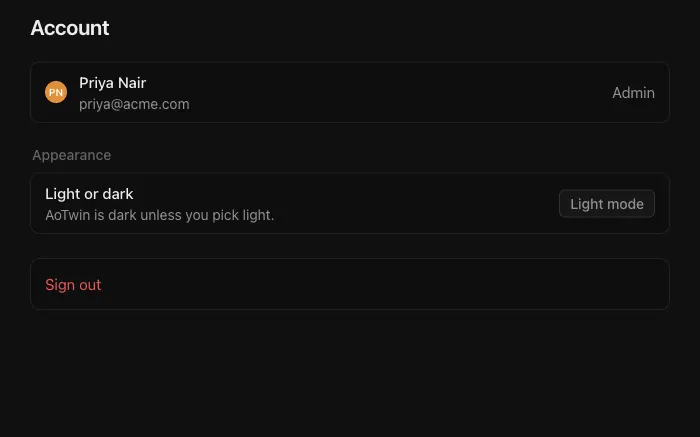
The top of the page shows your name, your email address and your role in the current workspace.
To change your name:
- Type the new name in the Name field. It can be up to 80 characters.
- Press Save. The page confirms with “Name saved.”
Your name goes on the work you ask for, so teammates see it on tickets and comments. Your email address is shown but can’t be changed on this page.
Light and dark
AoTwin is dark unless you choose light. Under Appearance, press the button beside Light or dark to switch. The sun and moon button in the sidebar does the same.
The choice is kept in your browser, so a new browser or device starts dark again.
Connected AI tools
You can work on tickets from an AI assistant you already use, such as the one in your editor. Under Connected AI tools, the page lists every tool you have connected. Each row shows:
- The tool’s name.
- The workspace it is connected to.
- Whether it is Read only or Can make changes.
- When it was last used.
Press Disconnect and confirm to cut a tool off. It stops working in that workspace straight away.
If nothing is connected, the list says “No AI tools connected.”
Connect a tool
Under Connect an AI tool, the page shows a setup for each supported tool, with a Copy button:
- A command to run once in a terminal, then finish in your browser.
- A block to add to your editor’s
mcp.json, then sign in when the editor asks. - An address to add as a custom connector in a chat app:
https://app.aotwin.io/mcp.
You sign in through your browser. There is no key to copy. A tool acts as you, in one workspace, and your teammates see its work as yours. Filing or editing a ticket from a tool never starts AoTwin. Only assigning a ticket to AoTwin does. For what a tool can do, see the MCP page.
Sign out
Press Sign out at the bottom of the page.
How you sign in
You sign in with Google, or with a link we email you.
- Google: press Continue with Google and choose your account.
- Email link: type your address and open the message. The link works once and lasts 15 minutes.
Both start from your email address, so either one takes you to the same account. AoTwin has no passwords. The Account page doesn’t list sign-in methods or let you change your email address.
FAQ
I don't see Settings. Where do I change my name?
Settings is for admins. Everyone, including members, can change their name and theme on Account from the workspace menu.
I disconnected a tool by mistake.
Connect it again under Connect an AI tool.
What does Read only mean?
A tool marked Read only can look up and read tickets. A tool marked Can make changes can also file, comment, assign and update them, as you.
I switched to light mode and it went back to dark.
The theme is saved in your browser. Clearing cookies, or using a different browser, resets it to dark.