Board and list
See all your tickets grouped by status, and drag them between columns on the board.
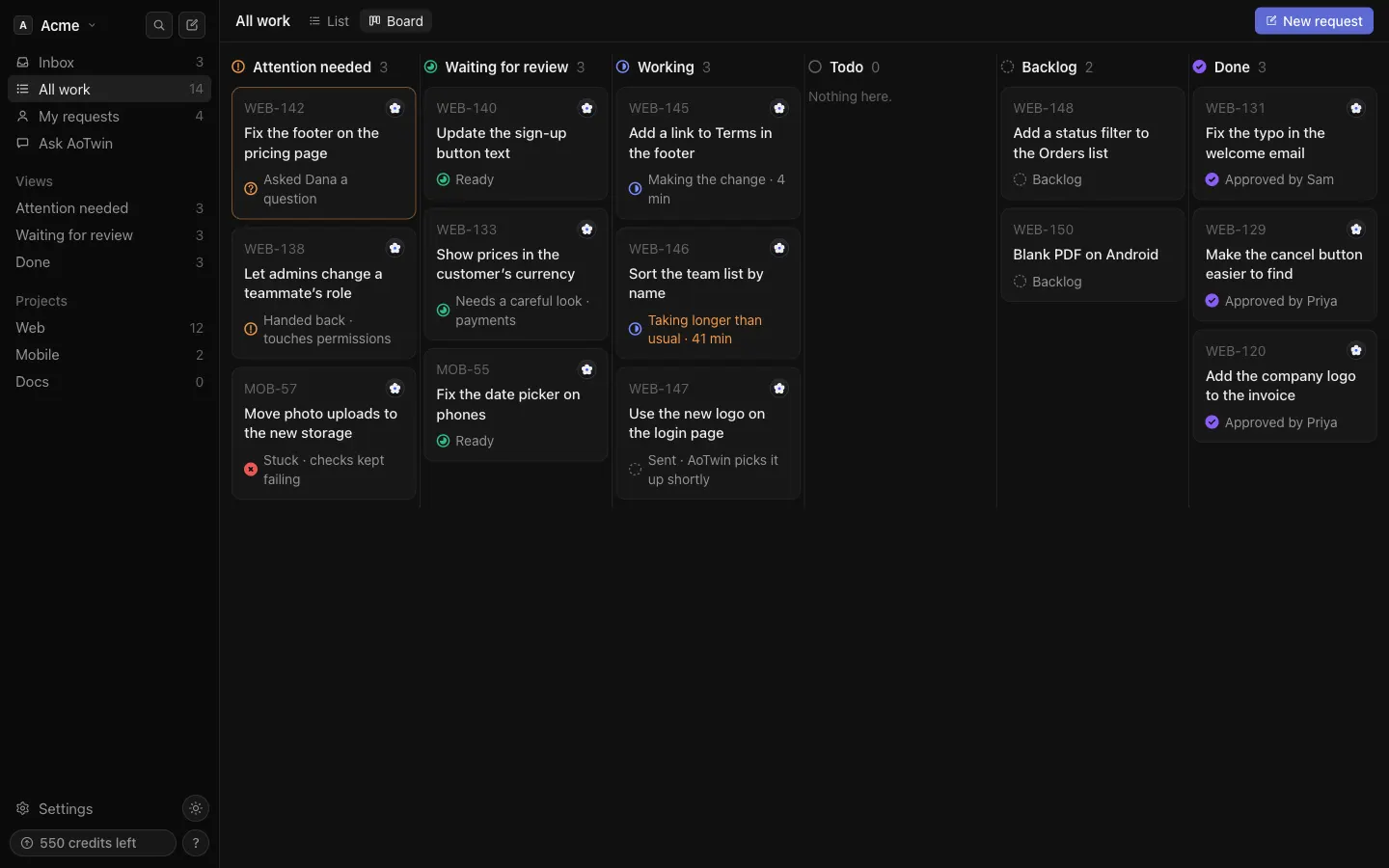
Overview
All work shows every open ticket in the workspace, grouped by status. You can read it as a List or as a Board. Both show the same tickets in the same six groups, so pick whichever suits the moment.
AoTwin remembers your choice in your browser.
Basics
Switch between list and board
Open All work from the sidebar. Press List or Board next to the page title. The choice sticks the next time you open the page.
The six groups
| Group | What lands in it |
|---|---|
| Attention needed | AoTwin asked a question, handed the ticket back, or got stuck. |
| Waiting for review | AoTwin’s change is ready and an engineer needs to review it. |
| Working | AoTwin is on it, or a person’s ticket is In progress. |
| Todo | Assigned and waiting. |
| Backlog | Nobody is on it yet. |
| Done | Finished. |
A ticket a person holds sits in the group named for its status. In review appears under Waiting for review. See Statuses.
The list
Each group is a section you can fold open or shut. Done starts folded. A row shows the status icon, the key, the title, a short line saying where it stands, who it is assigned to and when it last changed. Hover a row for a sentence about its status and who asked. Press a row to open the ticket.
An avatar with the AoTwin logo means AoTwin holds the ticket. An empty avatar means nobody does.
The board
Each group is a column, and each ticket is a card with its key, its assignee, its title and its status line. A card waiting on an answer from you is highlighted.
- Collapse a column. Press the fold button in its header. The column shrinks to a strip with its name and count. Press the strip to open it again. AoTwin remembers which columns you folded in your browser.
- Resize a column. Drag the line on its right edge. Double-click the line to reset the width. With the line focused, the left and right arrow keys change the width a few pixels at a time, and
Shiftwith an arrow takes bigger steps.
Move a card
Drag a card to another column to change its status. The card lands in the status that matches the column: Backlog, Todo, In progress, In review or Done. Drag within a column to put it in a different place. The order is saved for everyone in the workspace.
On a phone or tablet, press and hold a card for a moment before you drag. Press Esc to drop the card back where it was.
Some moves are not allowed.
- A ticket assigned to AoTwin can’t be dragged, because AoTwin sets its status. Change Assigned to first.
- Nothing can be dropped on Attention needed. That column fills when AoTwin asks or hands back.
If the move fails, the card goes back and a message says why.
Show one project
When the workspace has more than one project, the sidebar lists them under Projects. Press one to see only its tickets on All work, in the same list or board. Press All work to see every project again. See Projects.
Other lists
The sidebar has a few more places to read the same tickets.
- My requests: tickets you asked for.
- Views: Attention needed, Waiting for review and Done each open a list of only that group. They are list-only.
- Inbox: updates and questions for you. See Inbox.
Press ⌘K and type to find a ticket by its key or by words in its title.
FAQ
Can I filter by assignee or save a custom view?
Not in the app. The groups are fixed and follow the ticket status. To narrow things down, show one project, open one of the Views, or search with ⌘K.
Where did my closed ticket go?
Closed tickets leave every list and the board. Open one from a link or its key to read it, and press Reopen to bring it back. See Tickets.
Why won't my card stay in the column I dropped it on?
If the server can’t save the move, the card jumps back and a message appears. Reload the board if the column changed while you dragged, then try again.