> For agents: connect to the AoTwin MCP server at https://app.aotwin.io/mcp to read and change tickets and projects. Setup guide: https://aotwin.io/docs/mcp.md. Index of all docs: https://aotwin.io/llms.txt.
# Tickets
File a ticket, understand its fields, and edit, close or reopen it later.
## Overview
A ticket is one piece of work: what should change, where, and who is on it. You can file tickets for your team to pick up, or assign them to AoTwin to do. A ticket keeps its whole history on one page, from the first request to the final change.
The app also calls tickets **requests**, as in **New request**. See [Concepts](https://aotwin.io/docs/concepts).
## Basics
### File a ticket
1. Press **New request**, or press `C` anywhere in the app outside a text field. You can also use `⌘K` and choose **New request**.
2. Type a **Title**, up to 120 characters.
3. Write the **Description**, up to 5,000 characters. Say what is wrong or wanted and where. A copy fix, a missing filter or a layout that has been wrong for months are the kind of thing to write.
4. Set the other fields below, then press **Send request**, or press `⌘↵`.
The form saves nothing until you send it. If you press `Esc` after typing, AoTwin asks whether to discard what you wrote.
> A workspace with no plan can't file tickets. An admin can pick a plan in **Settings > Plan**.
### The fields
| Field | What it does |
| --- | --- |
| **Project** | Where the ticket belongs. Shown when the workspace has more than one project. |
| **Title** and **Description** | Both are required. |
| **Assigned to** | **Nobody**, **AoTwin** or a teammate. See [Statuses](https://aotwin.io/docs/statuses). |
| **Who asked** | The person the ticket is for. It starts as you. |
| Screenshots | Press the paperclip, or paste an image into the form. PNG, JPEG, WebP and GIF files are accepted, up to 10 MB each. |
| **Where it goes** | Shown only when the project is connected to Linear. Choose Linear, or **Only in AoTwin**. |
| **Create more** | Keeps the form open after you send, with the same project, asker and assignee, so you can file the next one. |
If you choose **AoTwin** as the assignee, AoTwin starts on the ticket as soon as you send it, and it uses credits. If no code is connected to the project, the ticket is saved and waits. See [Credits](https://aotwin.io/docs/credits).
Who asked matters later. The asker gets the ticket's updates in their [Inbox](https://aotwin.io/docs/inbox), and can edit or close the ticket.
### Write it for me
On a paid plan, a **Write it for me** button sits at the bottom of the form and works once you have typed something. It tidies your title and description into a clearer ticket, using only what you wrote. A note under the text lets you press **Undo** to get your own words back.
### The similar-ticket check
When you press **Send request**, AoTwin compares your title with the tickets that are still open. If one looks like the same thing, the form stops and shows **Looks similar to** that ticket's key. Choose **Open it instead** to read it, or **Send anyway** to file yours.
Done and closed tickets are not part of the check.
## The ticket page
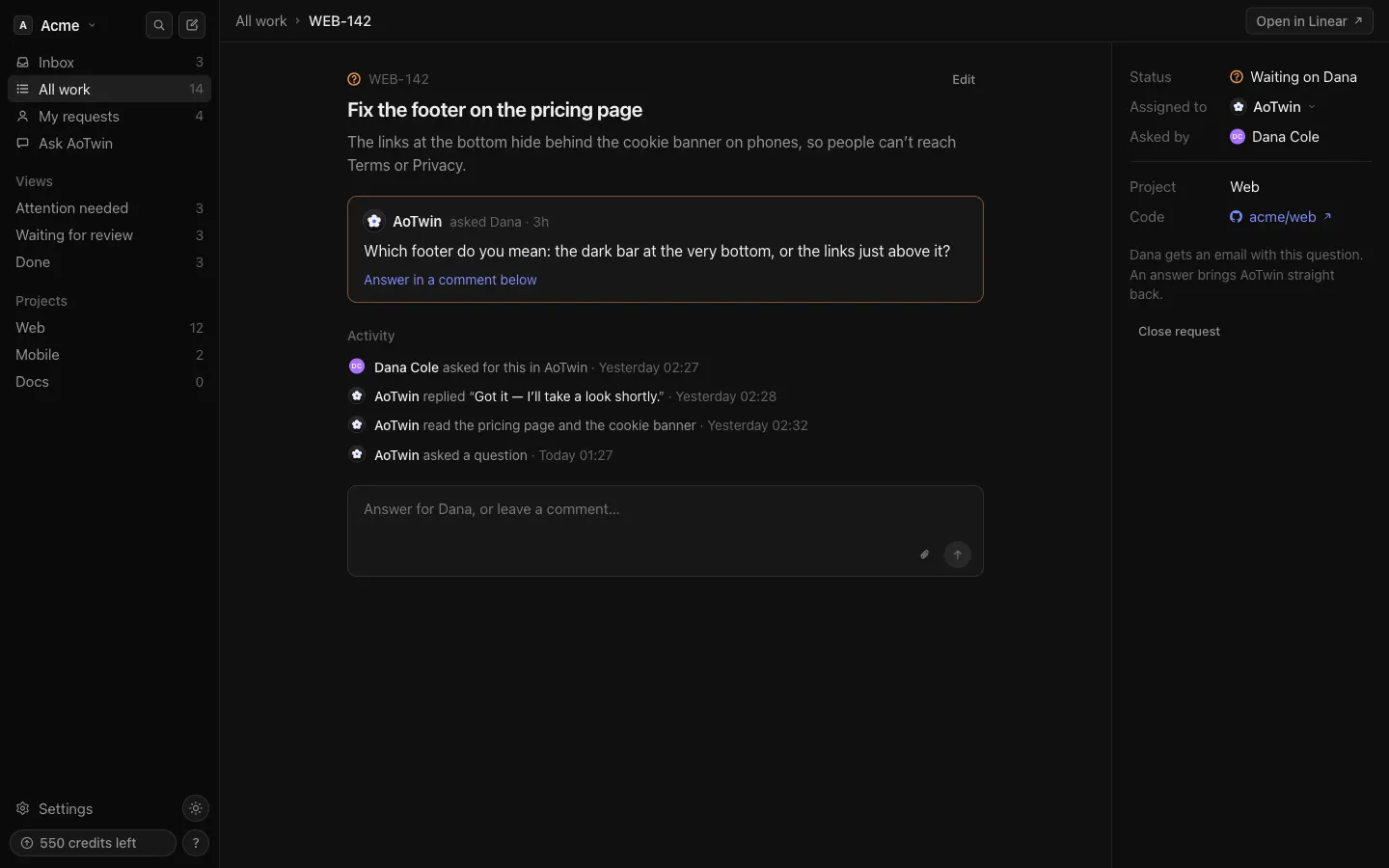
Open a ticket from any list, from the board, or by typing its key in `⌘K`. The page has two parts.
- **The story**: the title, the description, AoTwin's latest message when it has one, and the **Activity** with comments and events. See [Comments](https://aotwin.io/docs/comments).
- **The details**, on the right: **Status**, **Assigned to**, **Asked by**, **Project**, screenshots, and once AoTwin has worked on it, the **Code** repository, the **Change** (the pull request) and the **Checks** that passed or failed. Tickets AoTwin works on also show the **Credits** used.
If the ticket is in Linear, **Open in Linear** appears at the top.
## Edit a ticket
Only the person who asked, or an admin, can edit a ticket.
1. Open the ticket and press **Edit**.
2. Change the title, the description or **Who asked**.
3. Press **Save**.
The activity records "edited the request". If the ticket is in Linear, the change goes there as well. A closed ticket can't be edited.
## Close a ticket
Closing is for work that is no longer needed. Only the person who asked, or an admin, can do it.
1. Open the ticket and press **Close request** under the details.
2. Confirm with **Close it**.
AoTwin stops working on the ticket and it leaves every list. If AoTwin had opened a pull request that was not yet done, AoTwin closes that too. A ticket in Linear stays in Linear for the team to handle. The ticket's own page still opens, and shows who closed it and when.
Setting the status to **Canceled** closes the ticket in the same way.
## Reopen a ticket
A closed ticket, or one that is **Done**, shows a **Reopen** button in the details. Anyone in the workspace can press it. The ticket comes back as **Todo**. It keeps its assignee if that was a person, and is unassigned if it was AoTwin or nobody. To have AoTwin work on it again, assign it to AoTwin.
## FAQ
Does filing a ticket start AoTwin?
No. AoTwin starts only when a ticket is assigned to it. Filing or editing a ticket never does.
Can I delete a ticket?
No. Close it instead. A closed ticket leaves every list but keeps its history.
Why can't I attach a PDF or a document?
Tickets and comments take screenshots: PNG, JPEG, WebP and GIF images. Paste the text of a document into the description.
Why does my new ticket say it is waiting?
A ticket assigned to AoTwin waits when the project has no code connected, when the workspace is out of credits, or when AoTwin is busy. The ticket says which, and starts by itself once that clears. See [Statuses](https://aotwin.io/docs/statuses).