> For agents: connect to the AoTwin MCP server at https://app.aotwin.io/mcp to read and change tickets and projects. Setup guide: https://aotwin.io/docs/mcp.md. Index of all docs: https://aotwin.io/llms.txt.
# Security and access
Who can see and change what in a workspace, how people sign in, and how connected AI tools are limited.
## Overview
This page covers access inside your workspace: who can see tickets, who can change settings, how people sign in, and what a connected AI assistant can do. For where AoTwin works on your code, what is kept and for how long, which providers handle your data and whether your data is used for training, read [Security](https://aotwin.io/security). For personal data, see the [Privacy policy](https://aotwin.io/privacy), and for the agreement, the [Terms](https://aotwin.io/terms).
## Roles
Every person in a workspace is an **Admin** or a **Member**. Admins invite people and set the role of each person under **Settings > People**. See [People](https://aotwin.io/docs/people).
| | Admin | Member |
| --- | --- | --- |
| See every ticket in the workspace | Yes | Yes |
| File tickets, comment, attach screenshots | Yes | Yes |
| Change a ticket's assignee and status | Yes | Yes |
| Assign a ticket to AoTwin | Yes | Yes |
| Edit or close a ticket | Any ticket | Tickets they asked for |
| Open **Settings** | Yes | No |
| Connect GitHub, Linear or other integrations | Yes | No |
| Set [Rules](https://aotwin.io/docs/rules) and manage repositories | Yes | No |
| Change the plan and billing | Yes | No |
| Manage people | Yes | No |
| Use **Account** and connect AI tools | Yes | Yes |
> Assigning a ticket to AoTwin uses credits, and any member can do it. There is no setting to limit it to admins. Admins get an email when credits run low.
Members see all the work and can ask for changes. They do not see the settings pages at all.
## Workspaces
A workspace is one team's tickets, people and settings. You can belong to more than one, and switch between them from the menu at the top of the sidebar. Each workspace is separate: its tickets, people, connections and plan do not mix.
## Sign-in
People sign in with Google or with an email link. There is no AoTwin password.
- With email, AoTwin sends a one-time link. Opening it signs you in.
- With Google, you continue with your Google account.
- Invited people sign in with the address that received the invitation. Admins can cancel an invitation, which makes its link stop working, and can remove a person, who then loses access straight away.
You can sign out from **Account**, which is also where you set the name that shows on the work you ask for.
## Connected AI tools
An AI assistant that you connect through [MCP](https://aotwin.io/docs/mcp) acts as you, in one workspace, and sees what you see. Nothing is shared by key: you sign in to AoTwin from the assistant and approve what it may do.
- When you connect, the sign-in screen lists what the assistant will be allowed to do, and you choose **Allow** or **Cancel**.
- You can allow reading only. The assistant then gets no tools that change anything.
- Under **Account > Connected AI tools** you see every connection, its workspace, whether it is **Read only** or **Can make changes**, and when it was last used. **Disconnect** stops it straight away.
- An assistant cannot start AoTwin by filing or editing a ticket. Only assigning a ticket to AoTwin does.
## Code access
Only admins connect GitHub. AoTwin can reach only the repositories you choose. You can mark a repository read-only, and protect files and folders AoTwin must never change. See [GitHub](https://aotwin.io/docs/github) and [Rules](https://aotwin.io/docs/rules).
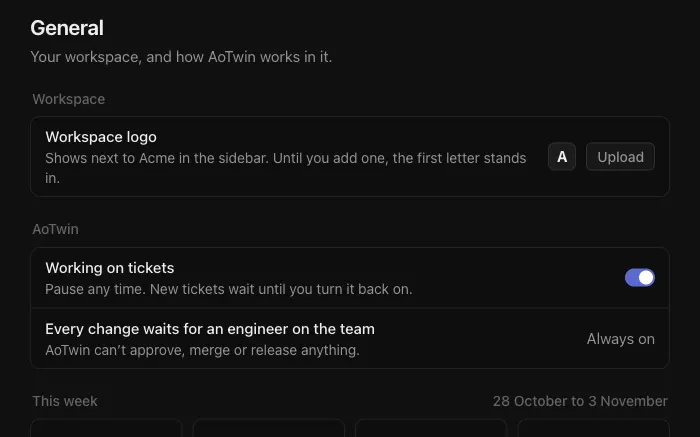
Whatever AoTwin does, an engineer on your team reviews and merges the result. AoTwin cannot approve or release anything.
## FAQ
Can a member see the settings?
No. Settings pages are for admins. A member who opens one gets a page that does not exist.
Can a member see tickets in projects they do not work on?
Yes. Members see all the work in the workspace.
How do I remove someone?
An admin opens **Settings > People**, chooses **Edit** next to the person, then **Remove**. They lose access straight away.
What if an assistant I connected should no longer have access?
Disconnect it under **Account > Connected AI tools**. It stops working at once, and your tickets are not touched.