> For agents: connect to the AoTwin MCP server at https://app.aotwin.io/mcp to read and change tickets and projects. Setup guide: https://aotwin.io/docs/mcp.md. Index of all docs: https://aotwin.io/llms.txt.
# Rules
Set the files and folders AoTwin must never change, and see the guardrails that are always on.
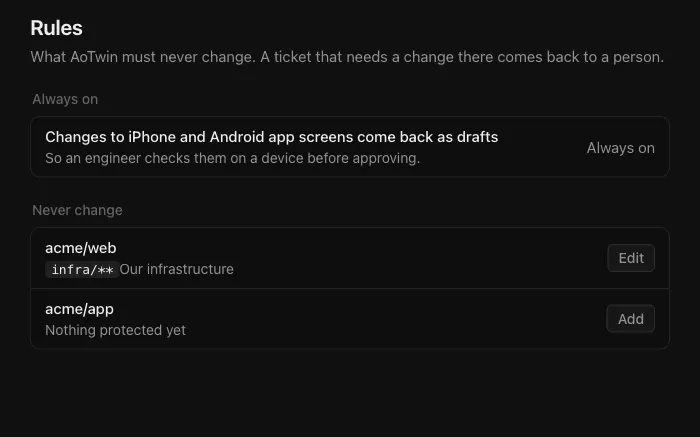
## Overview
Rules say what AoTwin must never change. You set them for each repository: a folder of deployment files, your automation setup, anything an engineer should always handle personally.
If a ticket cannot be done without touching a protected path, AoTwin does not do it. The ticket comes back to a person with the reason.
## Configure
> Only admins can see and change rules. Members do not see **Settings**.
1. Open **Settings > Rules**.
2. Find the repository. If the list says **Add a repository first**, add one under **Settings > Code** and come back. See [GitHub](https://aotwin.io/docs/github).
3. Choose **Add** next to the repository. If it already has rules, choose **Edit**.
4. Under **Areas AoTwin must never change**, write one folder or file pattern per line. Examples: `infra/**` and `.github/workflows/**`.
5. Optionally write the reason under **Why, in a few words**. It can be up to 80 characters, and it is shown beside the paths.
6. Choose **Save**.
A repository with no rules shows **Nothing protected yet**. Each pattern can be up to 200 characters.
## What a rule does
- AoTwin is told which paths are off limits before it starts work in that repository.
- When it finishes, the finished change is checked against the rules again before anything is opened for review. A change that touches a protected path is not opened.
- The ticket then shows **Handed back**, and the person who asked is told.
A rule applies to the repository, not to a ticket. It covers every ticket AoTwin works on there.
## Always on
Two guardrails are on for every workspace. You cannot switch them off.
- **Changes to iPhone and Android app screens come back as drafts.** An engineer checks them on a device before approving. You see this under **Settings > Rules**.
- **Every change waits for an engineer on the team.** AoTwin cannot approve, merge or release anything. You see this under **Settings > General**.
## Other limits you control
Rules are one of three places where you decide how far AoTwin goes.
- **Read-only repositories.** In **Settings > Code**, clear **AoTwin may change this repository** and AoTwin only reads it. A ticket whose code lives there is handed back.
- **Checks.** Under **Settings > Code**, list the checks AoTwin must run before anything comes back for review, one per line as `name: command`. A repository needs at least one.
- **Pausing.** An admin can switch off **Working on tickets** under **Settings > General**. New tickets wait until it is switched back on.
## FAQ
Who can change the rules?
Admins only. Members can see the effect, because tickets come back with the reason, but they cannot open **Settings > Rules**. See [People](https://aotwin.io/docs/people).
Do rules apply to work that is already running?
Rules are read when AoTwin starts a ticket. A rule you save applies to tickets that start afterwards.
Does a rule stop an engineer from changing those files?
No. Rules limit AoTwin only. Your engineers work in the repository as usual.
What pattern syntax can I use?
One pattern per line. `*` matches any name inside one folder, and `**` matches any number of folders. So `infra/**` covers everything under `infra`, and `**/*.sql` covers every `.sql` file. Write a folder as `folder/**`: a bare folder name matches only a file with that exact name.