> For agents: connect to the AoTwin MCP server at https://app.aotwin.io/mcp to read and change tickets and projects. Setup guide: https://aotwin.io/docs/mcp.md. Index of all docs: https://aotwin.io/llms.txt.
# People
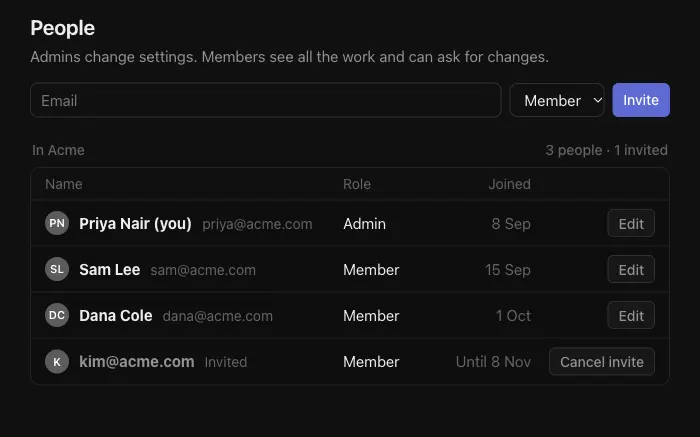
Invite teammates, set their role as admin or member, and remove people from the workspace.
## Overview
Everyone who works in your workspace has a role: **Admin** or **Member**. Admins change settings. Members see all the work and can ask for changes.
Designers, QA and product managers can all be members. They can file tickets and follow the work without touching the settings.
## Configure
> Only admins can invite people, change roles or remove people.
### Invite someone
1. Go to **Settings > People**.
2. Type their **Email**, choose a **Role**, and press **Invite**. The role starts as **Member**.
3. AoTwin emails them an invitation. The list now shows them with **Invited** and the date the invitation runs out. An invitation lasts seven days.
The person opens the link in the email, sees **Join** and your workspace's name, and presses the button. They are signed in and land in the workspace. They must use the address you invited. If they are signed in to AoTwin with a different address, the page asks them to sign out and open the link again.
If the link has expired, the page says "This invitation has expired. Ask your admin for a new one." Cancel the old invitation and invite them again.
### Cancel an invitation
Find the invited email in the list and press **Cancel invite**, then confirm. Their link stops working.
### Change a role
1. Find the person in the list and press **Edit**.
2. Pick a **Role**.
3. Press **Save**.
### Remove a person
Press **Edit** beside them, then **Remove**, and confirm. They lose access straight away.
Every workspace needs at least one admin. You can't remove or demote the last one. Make someone else an admin first.
### People and your plan
The Free plan limits how many people a workspace can have, and pending invitations count towards it. When the limit is reached, the **Invite** button is disabled and a line under the form says so, with a link to upgrade. Paid plans have no limit on people. See [pricing](https://aotwin.io/pricing).
## What each role can do
| | Admin | Member |
| --- | :---: | :---: |
| See all work in the workspace | Yes | Yes |
| File tickets and comment | Yes | Yes |
| Assign tickets and set statuses | Yes | Yes |
| Use [Ask AoTwin](https://aotwin.io/docs/ask-aotwin) | Yes | Yes |
| Edit or close a ticket they asked for | Yes | Yes |
| Edit or close any ticket | Yes | No |
| Open **Settings** | Yes | No |
| Invite people and change roles | Yes | No |
| Connect GitHub and Linear, add or remove projects | Yes | No |
| Choose the plan and see credit use | Yes | No |
| Pause AoTwin for the workspace | Yes | No |
| Connect their own AI tools in [Account](https://aotwin.io/docs/account) | Yes | Yes |
A member who opens a settings page by its address gets a "not found" page. Members reach their own **Account** from the workspace menu at the top of the sidebar.
## FAQ
I invited someone and they say there is no room.
The workspace is at the people limit of its plan. Upgrade in **Settings > Plan**, then ask them to open the invitation again.
What does someone see if they sign up without an invitation?
They set up their own workspace. If they were meant to join yours, ask them to use the invitation link instead. A signed-in person who isn't in any workspace sees "You're not in a workspace yet. Ask your admin to invite you."
Can one person be in two workspaces?
Yes. If you belong to more than one, the workspace menu lists them and you switch from there.