> For agents: connect to the AoTwin MCP server at https://app.aotwin.io/mcp to read and change tickets and projects. Setup guide: https://aotwin.io/docs/mcp.md. Index of all docs: https://aotwin.io/llms.txt.
# Linear
Connect Linear so you can assign issues to AoTwin there, and see what syncs in each direction.
## Overview
AoTwin joins your Linear workspace like a teammate. You assign an issue to AoTwin, it does the work, and it answers on the issue with a link to the pull request or the reason it stopped. Your team stays in Linear. The same ticket also appears in AoTwin.
Linear is optional. Without it, AoTwin keeps your tickets itself.
## Configure
> Only admins can connect or disconnect Linear. Linear asks a workspace admin to approve AoTwin.
### Connect Linear
1. During setup, choose **Linear** on the page **Where does your team keep its tickets?**, then choose **Add to Linear**. Later, go to **Settings > Connections**, find **Linear** under **Tickets** and choose **Connect**.
2. In Linear, approve the access AoTwin asks for.
3. Back in AoTwin, the page shows **Connected to Linear** with your Linear workspace name.
You can remove AoTwin in Linear's settings at any time.
If something goes wrong, AoTwin shows one of these:
- **AoTwin wasn't added to Linear.** You declined. Try again when you are ready.
- **Your company's Linear already has AoTwin.** Ask an admin there to invite you to the AoTwin workspace.
- **That's a different Linear workspace.** Reconnect the Linear workspace this AoTwin workspace already uses.
### After you connect
Each Linear team becomes a project in AoTwin. Match each project to a repository so AoTwin knows where to work. See [GitHub](https://aotwin.io/docs/github).
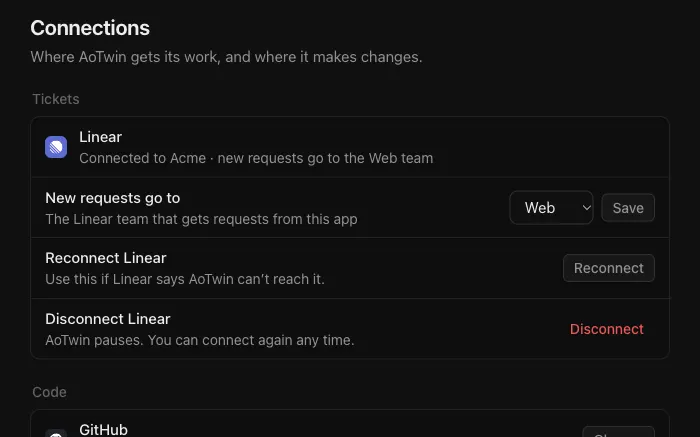
To change settings later, go to **Settings > Connections** and choose **Manage** next to Linear:
- **New requests go to** sets the Linear team that receives tickets created in AoTwin.
- **Reconnect Linear** helps if Linear says AoTwin cannot reach it.
- **Disconnect Linear** is described below.
## Assign an issue from Linear
Open the issue in Linear and pick AoTwin as the delegate, the way you would pick a teammate as the assignee. AoTwin answers on the issue within seconds and moves the issue from Backlog or Todo to a started status. It never moves an issue backwards.
The same work then shows in AoTwin, with the same key, such as `WEB-12`. From there it follows [Assign a ticket to AoTwin](https://aotwin.io/docs/assign-to-aotwin) and [Review the work](https://aotwin.io/docs/review-the-work).
An issue you do not assign to AoTwin stays in Linear. AoTwin has no ticket for it and ignores changes made to it.
## What syncs
### From Linear to AoTwin
- **Title and description.** Edits made in Linear show up on the AoTwin ticket, with an activity line saying they were made in Linear.
- **Comments.** New, edited and deleted comments follow. A comment appears under the person's name when their Linear email matches an AoTwin member, and under their Linear name otherwise.
- **Reactions.** Emoji reactions on comments follow.
- **Done and Canceled.** Marking the issue done marks the ticket **Done** and AoTwin stops. Canceling it closes the ticket and AoTwin stops. Other status changes in Linear do not change the AoTwin ticket.
- **Answers and stops.** If AoTwin asked a question, your reply on the issue answers it. If you stop AoTwin from Linear, it stops and hands the ticket back with **Stopped in Linear**.
### From AoTwin to Linear
- **New tickets.** A ticket created in AoTwin for a project tied to a Linear team becomes a Linear issue, unless you choose **Only in AoTwin** under **Where it goes**. Screenshots go with it.
- **Edits, comments and reactions** made in AoTwin appear in Linear.
- **Progress.** AoTwin posts updates on the issue: that it picked the ticket up, which part of the code it is working in, a question if it has one, and the pull request when it is ready. It adds a label for the part of the code the ticket belongs to, and the pull request appears as a link on the issue.
- **Hand-backs.** When AoTwin hands a ticket back, it assigns the issue to the person who asked, when it can match them by email, and stops being the delegate.
- **Closing.** If a ticket is closed or taken over in AoTwin, AoTwin tells the issue it has stopped.
## Disconnect Linear
1. Go to **Settings > Connections** and choose **Manage** next to Linear.
2. Choose **Disconnect Linear** and confirm.
AoTwin pauses and stops picking up Linear work until you connect again. Tickets that were waiting show **Linear is disconnected. An admin can reconnect it in Settings > Connections.** When you reconnect, AoTwin starts on the work it held back.
Tickets and history stay in AoTwin.
## FAQ
Does AoTwin copy all my Linear issues?
No. A ticket appears in AoTwin when you assign an issue to AoTwin, or when you create it in AoTwin. Other issues stay in Linear.
The row says AoTwin can't reach Linear.
AoTwin lost its access, for example because the app was removed in Linear. Choose **Reconnect** on the Linear row under **Settings > Connections**.
Can I use Linear and AoTwin's own board together?
Yes. Tickets tied to Linear show in both places and stay in step. Tickets you file as **Only in AoTwin** stay in AoTwin.