> For agents: connect to the AoTwin MCP server at https://app.aotwin.io/mcp to read and change tickets and projects. Setup guide: https://aotwin.io/docs/mcp.md. Index of all docs: https://aotwin.io/llms.txt.
# GitHub
Connect GitHub, choose the repositories AoTwin can change, and match each one to a project.
## Overview
AoTwin needs GitHub to do its work. You install the AoTwin app on your GitHub account or organization and choose which repositories it can reach. AoTwin reads the code, makes a change on its own branch and opens a pull request. It cannot merge. An engineer on your team does that.
Without GitHub, tickets can still be filed and assigned. They wait with **Saved · AoTwin starts once GitHub is connected**, and start on their own as soon as a repository is added for their project.
## Configure
> Only admins can connect GitHub and manage repositories.
### Connect GitHub
1. During setup, the page **Choose where AoTwin works** has a **Connect GitHub** button. Later, go to **Settings > Connections**, find **GitHub** and choose **Install**.
2. On GitHub, pick the account or organization, then choose the repositories AoTwin may use.
3. Back in AoTwin, the page shows **Connected to GitHub** with your account and the number of repositories AoTwin can reach.
To add or remove repositories later, choose **Change** next to GitHub under **Settings > Connections**.
If your organization needs an owner to approve new apps, AoTwin tells you that an owner of that organization has to approve it. Once they have, connect GitHub again.
A GitHub account can be connected to one AoTwin workspace at a time.
### Match projects to repositories
AoTwin works on a project's tickets in the repository you matched to that project.
- If your tickets live in Linear, each Linear team is a project. During setup, **Which repository does each project work in?** lists them. AoTwin suggests a match by name. Change any that are wrong, or choose **Not now** to leave a project for later.
- If your tickets live only in AoTwin, each repository is its own project, with a short key like `WEB`.
Your plan sets how many projects the workspace can have. Adding more shows a message to upgrade.
### Add or change a repository
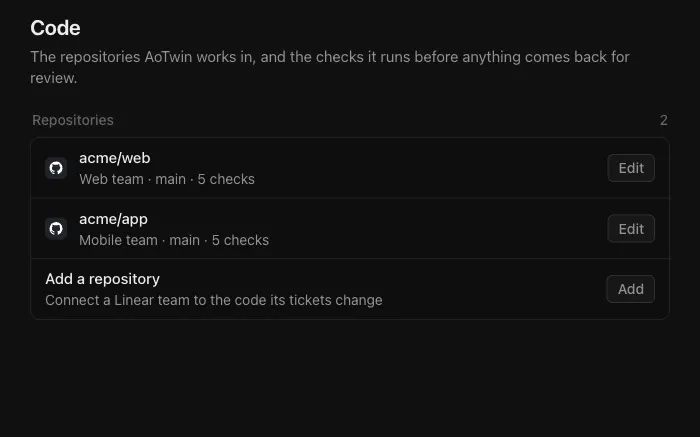
1. Open **Settings > Code**.
2. Choose **Add** under **Add a repository**, or **Edit** next to a repository.
3. Fill in the fields:
| Field | What it is |
| --- | --- |
| **Project** | The project whose tickets change this code. |
| **Name** | A label for the repository. Needed when a project has more than one repository, and it has to differ for each. |
| **Repository** | Chosen from the repositories AoTwin can reach. |
| **Default branch** | The branch AoTwin starts from. It never writes to it. |
| **Checks** | The commands AoTwin runs before anything comes back for review, one per line as `name: command`. At least one is required. |
| **Sites the checks download from** | Optional. Package registries are always allowed. Add any other host your build fetches from, such as a fonts host. |
| **AoTwin may change this repository** | Clear it and AoTwin only reads the repository. |
4. Choose **Save**.
To stop AoTwin working in a repository, choose **Edit**, then **Remove**. AoTwin stops working on that project's tickets there.
### Protect files
Set paths AoTwin must never change under [Rules](https://aotwin.io/docs/rules).
## What access AoTwin has
- **Reads** your repository metadata and code, in the repositories you chose.
- **Writes** a branch named after the ticket, and opens a pull request from it. The pull request description links back to the ticket and lists the checks that passed.
- **Never writes to your default branch**, and cannot merge, approve or release a pull request.
- **Uses short-lived access** limited to the repositories you connected. For where the work runs and what is kept, see [Security](https://aotwin.io/security).
AoTwin hears from GitHub when a pull request it opened is merged or closed, and when you change the installation. A merge moves the ticket to **Done**. A pull request closed without merging hands the ticket back.
## Suspended or removed installs
AoTwin keeps in step with the installation on GitHub.
- If the installation is **suspended** on GitHub, AoTwin stops counting its repositories as reachable. It cannot read or change them until the installation is active again.
- If the app is **uninstalled** from GitHub, AoTwin drops the installation. Repositories that depended on it can no longer be reached.
- If you try to add a repository AoTwin cannot reach, it says: **AoTwin can't reach that repository. Install the GitHub app on it first.**
To fix either case, make the installation active on GitHub again, or open **Settings > Connections** and choose **Install** next to GitHub to install it afresh.
## FAQ
Why does AoTwin say a repository isn't there anymore?
The repository was removed from AoTwin's settings, or you took it away from the installation on GitHub. Add it again under **Settings > Code**.
A project has more than one repository. How does AoTwin choose?
Give each repository a different **Name** under **Settings > Code**. AoTwin reads the ticket and the code and picks the one the ticket belongs in. If a Linear label on the ticket matches a repository name, that repository is used.
It says another workspace already has this GitHub account.
A GitHub account connects to one AoTwin workspace. Install AoTwin from a different account, or [contact us](https://aotwin.io/#contact) if you think the account was connected by mistake.
Can AoTwin see repositories I didn't choose?
No. It reaches only the repositories you selected when you installed the app.